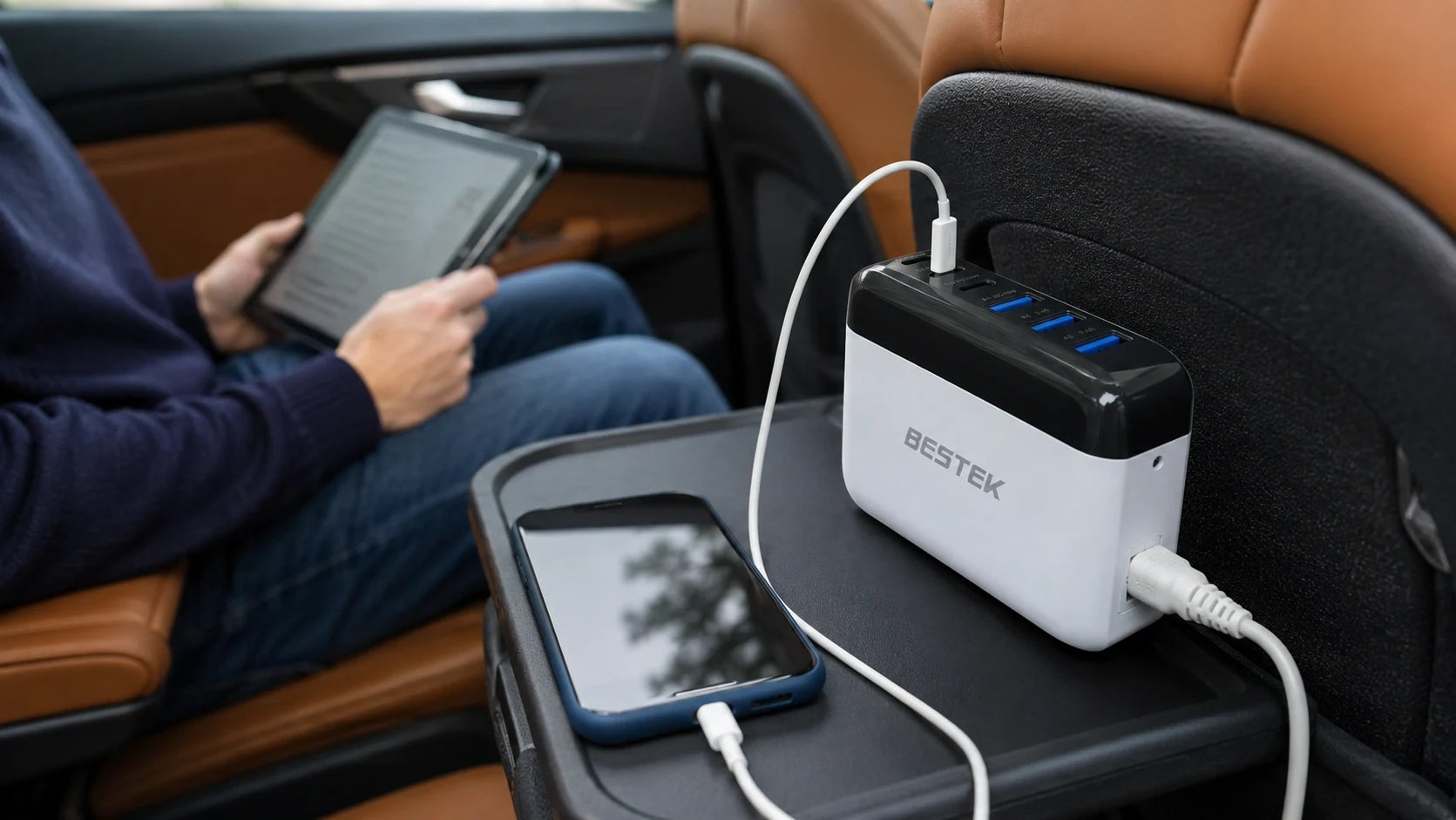
A shared charger works better when each passenger recognizes their own lead. Bring the phones, tablets and cables together before the trip and give each combination an appropriate port.
The six outputs offer different capabilities. Check the device’s supported charging method and the cable, then keep the pairing consistent. The goal is a simple arrangement passengers can use without asking the driver to work out a new connection on the road.
125W is not the output of one port. Choose a port and cable that match the device you want to charge.
Look at the ports, not just the total
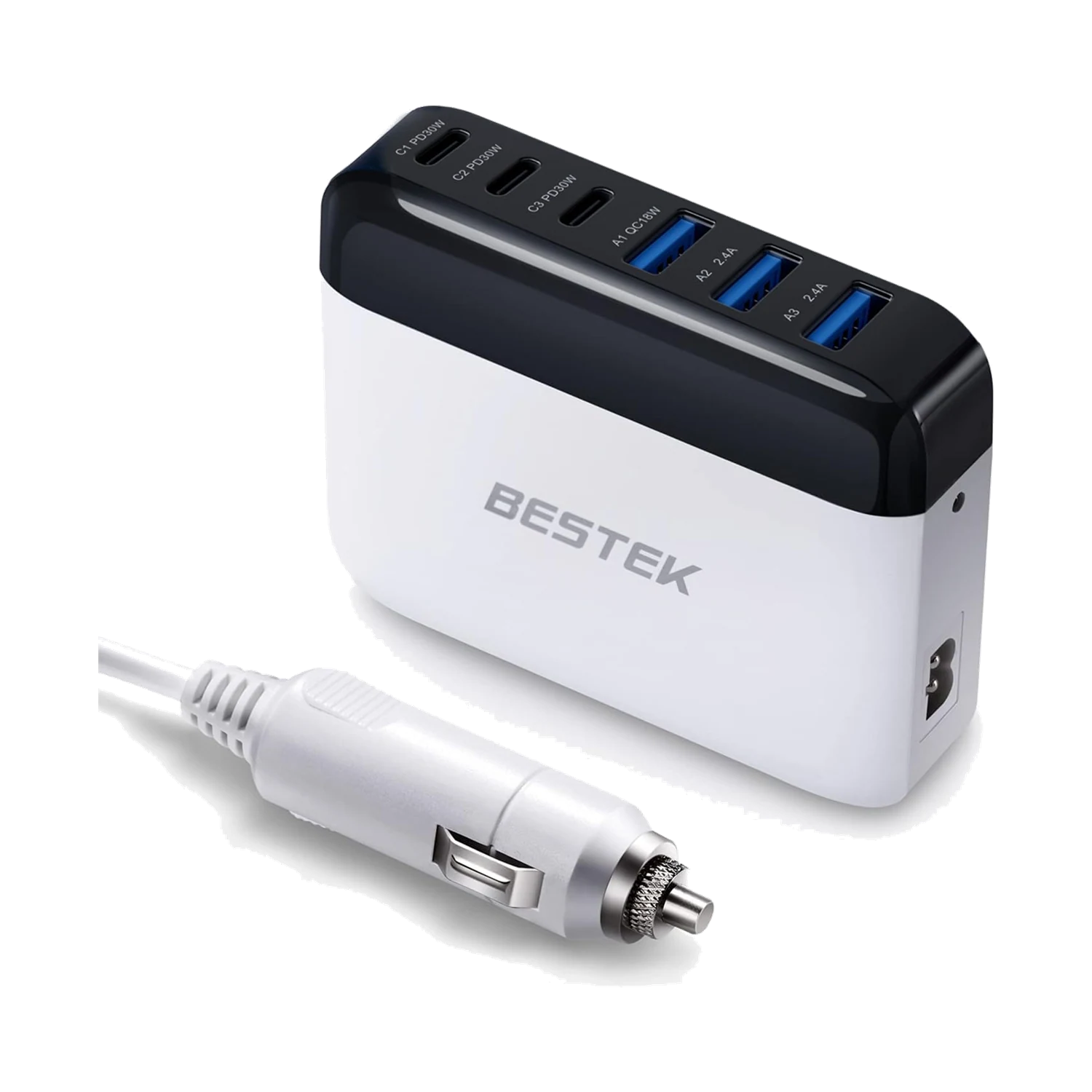
The BESTEK 125W multi-port USB car charger is listed with three USB-C PD ports rated up to 30W each, one USB-A QC 3.0 port rated up to 18W, and two additional USB-A ports. Those connections serve different charging needs. The product’s 125W headline is not an individual USB-C output rating. Before selecting a port, check the actual product label and the charging requirements of the phone, tablet or other compatible device.
Look at the individual ports
Match each device and cable to one suitable output instead of treating the total rating as one-port output.
Match the complete charging path
Charging depends on a compatible combination of source, cable and device. A USB-C connector alone does not establish which charging power a device will accept. Use an undamaged cable suitable for the device and its charging mode, and connect it directly to the appropriate output. The device may request less power than the port maximum. Battery level, temperature and device activity also affect what happens during a charging session, so avoid expecting a fixed percentage increase in a fixed number of minutes.
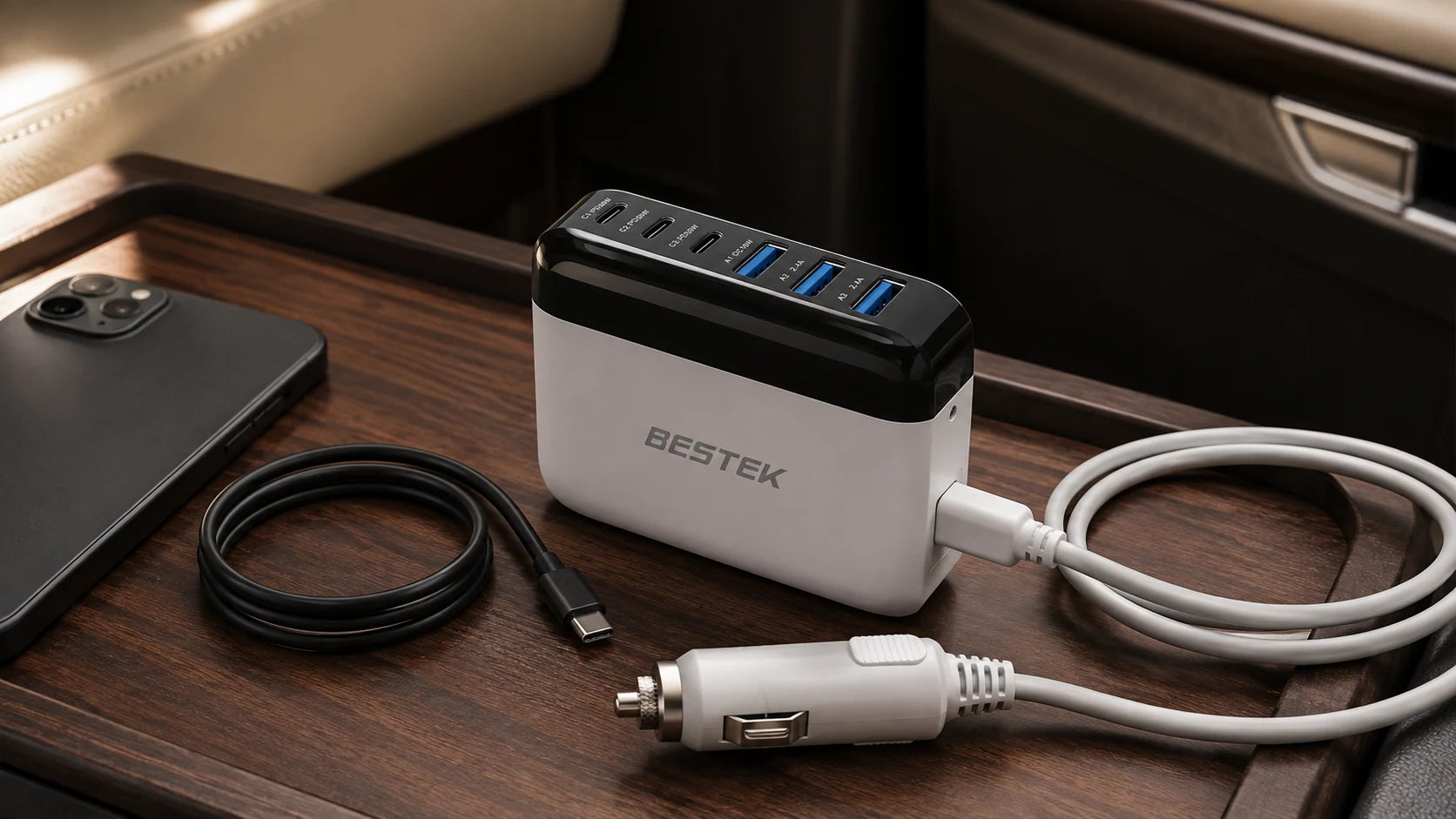
Make a seat-by-seat charging plan
Start with one device per passenger. Write down the device’s supported charging method, select an appropriate port, and pair it with a compatible cable. For a phone and tablet, check both separately even if their connectors look alike. USB-C connector shape does not itself establish Power Delivery support.
Identify the pair with a named pouch or cable marker away from the connector. Arrange the disconnected leads from the passenger seats. Check reach and slack before the trip, with no route through controls, seat rails or passenger exits.
Give the laptop its own compatibility check
Some USB-C laptops can accept a lower-power source, while others require more power or particular supported profiles. A port rated up to 30W should not be presented as a replacement for every laptop’s original charger. Check the laptop manufacturer’s minimum requirements and expected behavior at that input. Under a heavy workload, an insufficient source may not keep up with consumption. If the device does not support this charging path, choose a compatible supply rather than adding adapters at random.
Plan for the passengers, not just the console
A useful arrangement keeps the charger stable and the leads close to the seats that need them. Set it up while the vehicle is parked. Avoid draping cables across the gear selector, the driver’s footwell, seat rails or airbag areas. Leave enough slack for normal passenger movement without creating loops that can catch. Keep the charger away from liquid containers and do not enclose it in fabric while operating. Follow the vehicle and charger instructions for supply compatibility and simultaneous use.
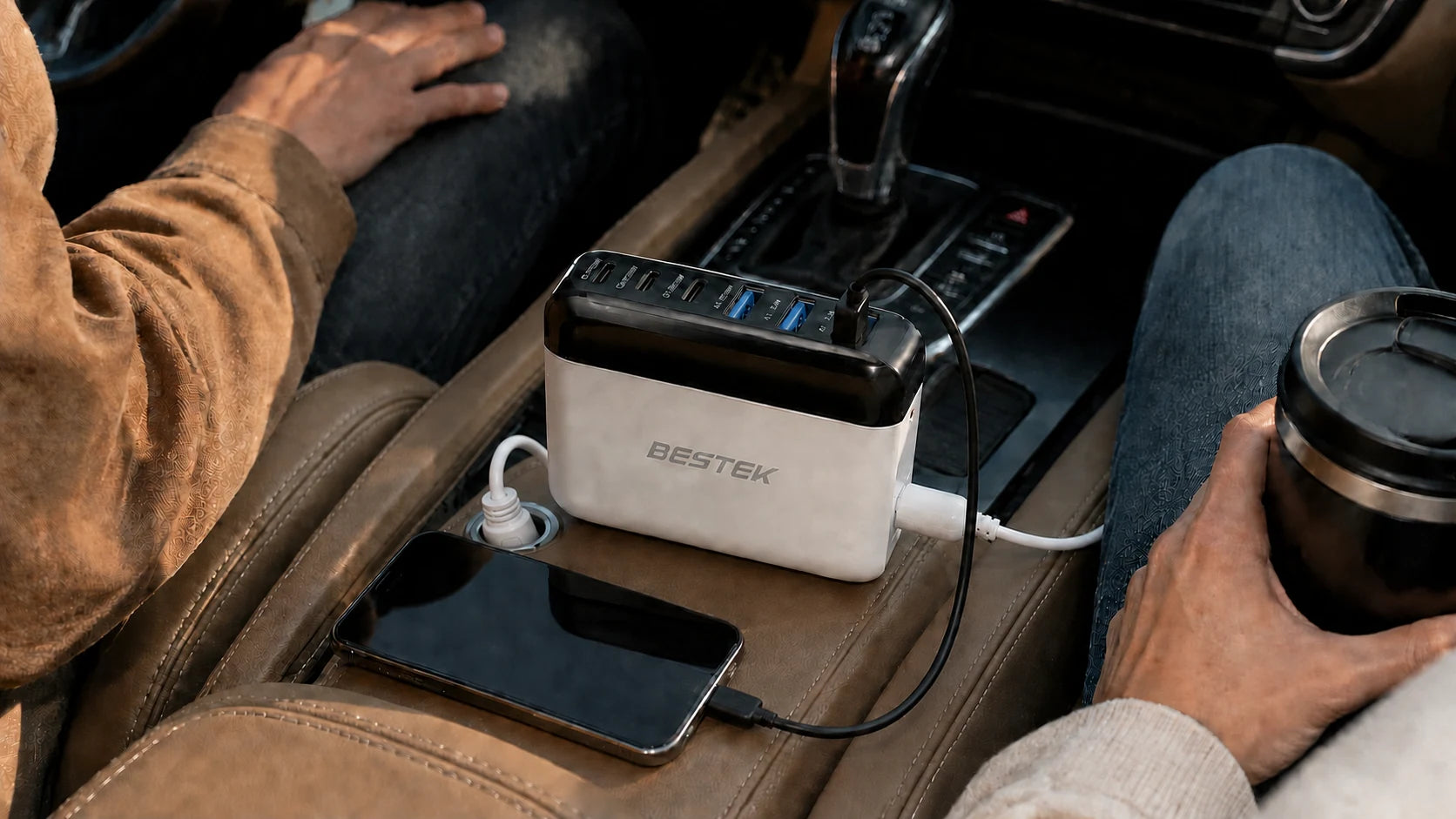
Keep the setup easy to understand
Use a consistent cable for each device and disconnect unused leads before they become tangled. If one device charges unexpectedly slowly, check the port, cable and device requirements instead of assuming the charger has failed. Stop using damaged cables or loose plugs. The aim is a predictable charging arrangement that passengers can understand without the driver needing to troubleshoot on the road.
Match the output to the device
| Listed output | What to look for | Do not assume |
|---|---|---|
| Three USB-C PD: up to 30W each | Compatible PD charging requirements | Every laptop is supported |
| One USB-A QC 3.0: up to 18W | Compatible device charging mode | Every USB-A port is identical |
| Two additional USB-A ports | Actual label and device requirements | The QC output applies here |
Check the manual for simultaneous-use conditions; 125W is not a single-port output.
Match each device and cable
Use this checklist while you review your equipment.
0 of 4 checked. Your checks stay in this tab only.
Common questions
Does a 30W port force 30W into my phone?
No. With compatible charging equipment, the device determines the supported power it accepts.
Are all six ports the same?
No. The listing describes USB-C PD, USB-A QC and additional USB-A outputs with different capabilities.
Can one device use the whole 125W rating?
No. This model lists individual USB-C outputs up to 30W. Choose from the supported output of one appropriate port.
Will a higher-rated port always charge faster?
Not necessarily. With compatible equipment, the device accepts supported power according to its requirements; a port maximum is not a guaranteed charging rate.
Sources and editorial notes
BESTEK product listing. Product facts checked September 7, 2026.
Scene images are AI-generated editorial illustrations, not test reports or installation diagrams. Follow actual labels and instructions.